
Click the button to Open, Save, or print and to see everything you can do with your document.
Step 1: Office button
Step 2: New
Are you wanted to create a new document in Microsoft office word? Please follow the below steps.
Office button–>New

Step 3: Open
You can retrieve your saved documents in Microsoft office word.
Office button–>Open–>Dialog box–> Enter your file name–> Click open

Step 3: Save
This is most important step of MS WORD Editor. Because you must save your document in each and every changes otherwise it will be auto deleted in case of power shut down or close the application.
Office button–> Save–> Dialog box opened–>Enter you file name–> choose save

Step 4: Save As
It is more over same the above concept. It’s having one distinguish. That is the Save button can save only one name in one document. But Save As can save one document in many names.
Office button–> Save As–> Dialog box–>Enter a different document name–> choose save button

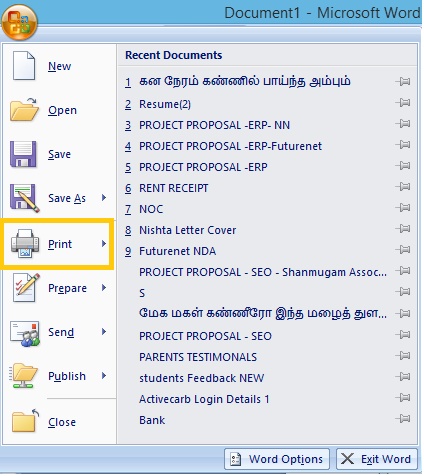
Step 5: Print
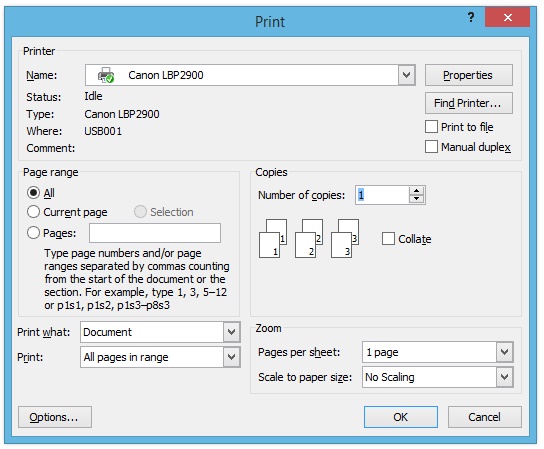
It is used to take a hard copy from soft copy.
System Documents: Soft copy
Paper or any external documents: hard copy
Office button–>Print–>Dialog box–> Specify the properties and options of print box–>Click Ok
Step 6: Prepare
These are one of the setting sections of document. You can set a security of your word documents. And also can set document settings.
Office button–> Prepare–> select the options

Step 7: Send
It can be used to send your document as attached to mail or fax.
Office button–>Send–> select the options

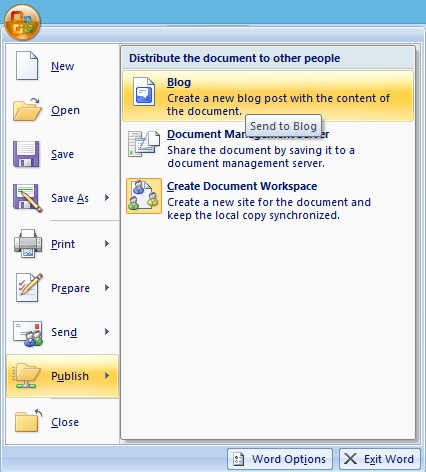
Step 8: Publish
Create a new blog post with the content of the document.
Office button–> Publish–> select the options
Step 9: Close
Close the current document in Microsoft office word.

I hope this class is useful to you. Please let me know your feed back for my guidance. See you the next class in this sections briefly until then bye from your friend. Take care.
 Basic Image class